 email
emailSmall business email
Gmail filters for a one-person business: invoices, orders and notifications sorted as they arrive
Sixty emails arrive on a normal day. Four are from people who want an answer, six are orders, two are bills. The other forty-eight are notices from your card processor, notifications from tools you use, and newsletters you might read on Sunday. Gmail can sort all of that before you see it, with five filters you set up once.
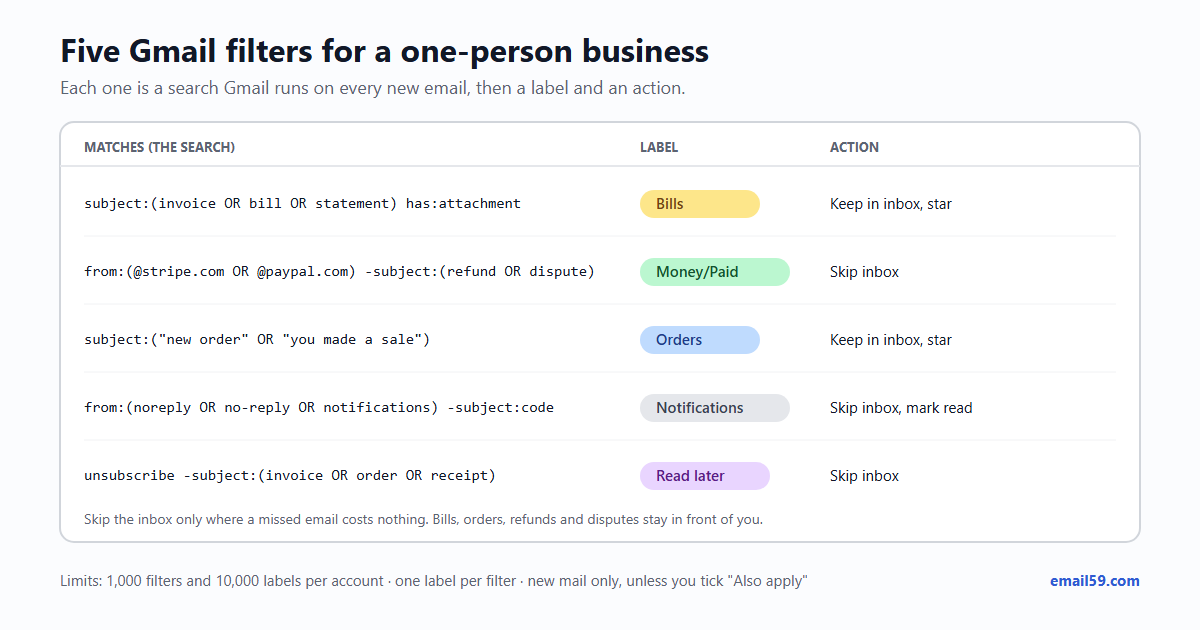
A filter is a saved search with an instruction attached: every new email that matches the search gets a label, and, if you say so, skips the inbox, gets a star or is marked as read. This piece gives you the five filters most one-person businesses need, with the exact search for each, a file to import all five in one go, the limits Google sets, and the things filters simply can't do.
How a filter works, in four facts
- It starts as a search. On a computer, click the sliders icon at the right of Gmail's search box, fill in the fields (or type the whole search into Has the words), press Search to see what it catches, then Create filter and pick the actions. You can also open one email, press ⋮ and choose Filter messages like these; Gmail fills in the sender for you.
- It acts on new mail only. Old mail is left alone unless you tick Also apply filter to matching conversations when you save it. That tick is a one-off: it runs once, then the filter goes back to watching new arrivals.
- Every matching filter runs, not just the first. Outlook rules have a "stop processing more rules" switch; Gmail filters don't. An email that matches two filters gets both labels, and if either one says skip the inbox, it skips the inbox. That's why the searches below keep each other's mail out with a minus sign.
- It looks at single messages, not whole conversations. Google's help says a reply "will only be filtered if it meets the same search criteria". A client who answers your invoice email in a thread lands in the inbox unless the reply itself matches, which is usually what you want.
Filters are made on the web. The Gmail apps for Android and iPhone show labels and filtered mail but can't create or edit a filter; open gmail.com in a computer browser for the setup.
The search words you'll need
Gmail has more than thirty search operators. A business filter set uses about ten of them:
| Operator | Matches | Example for a small business |
|---|---|---|
from: | The sender's address or name; a domain catches everyone there | from:@stripe.com |
to: / deliveredto: | Who it was sent to; deliveredto: catches mail that arrived through an alias or a forward | deliveredto:orders@yourshop.example |
subject: | Words in the subject line | subject:invoice |
has:attachment | Any attachment | subject:statement has:attachment |
filename: | An attachment's name or type | filename:pdf |
list: | Mail sent through a mailing list (its List-Id) | list:news.example.com |
OR and ( ) | Either word; brackets group them | subject:(invoice OR bill) |
- | Leave out mail that has this | -subject:refund |
" " | This exact phrase | subject:"new order" |
larger: | Bigger than a size | larger:10M |
Two habits save trouble. Gmail matches whole words, so invoice doesn't catch invoices; put both in the brackets if your senders use both. And OR goes in capitals, otherwise Gmail searches for the word "or". The full list of operators is on Google's help page (in the sources).
The five filters
Create the labels first (left menu, Labels, +). A label called Money/Paid shows up as Paid nested under Money. Then paste each search into Has the words, check the results, and set the actions.
1. Bills you have to pay
subject:(invoice OR invoices OR bill OR statement OR "payment due") has:attachment -from:meActions: apply the label Bills, star it. Keep it in the inbox. A bill you never saw is a late fee. -from:me keeps your own invoices to clients out of it.
2. Money in: payment and payout notices
from:(@stripe.com OR @paypal.com OR @squareup.com) -subject:(refund OR dispute OR chargeback OR action)Actions: label Money/Paid, skip the inbox. These say money arrived; it arrives whether you read them or not, and your processor's dashboard has the same numbers. The exclusions keep refunds, disputes, chargebacks and anything asking you to act in the inbox, because those come with deadlines. Swap in the processors you actually use; open one of their emails and use Filter messages like these to get the exact sender.
3. Orders
subject:("new order" OR "you made a sale" OR "order placed")Actions: label Orders, star it, keep it in the inbox. The phrases are examples: shops word their order emails differently, so press Search first and look at what comes back. If your shop sends orders to a separate address such as orders@ that forwards to Gmail, deliveredto:orders@yourshop.example is more reliable than any subject word.
4. Notifications from the tools you use
from:(noreply OR no-reply OR notifications OR notification) -subject:(code OR security OR password OR verify OR "sign-in" OR invoice OR order)Actions: label Notifications, skip the inbox, mark as read. This is the filter that empties the inbox most: app updates, "someone commented", calendar digests, delivery tracking. The minus list matters more than the plus list. Sign-in codes, security alerts and password resets come from no-reply addresses too, and you want those in front of you the moment they arrive. If your bank sends statements from a no-reply address, filter 1 labels them but this one would archive them: add the bank to the minus list, as in -from:@yourbank.example.
5. Newsletters and offers to read later
unsubscribe -subject:(invoice OR order OR receipt OR refund) -from:(@stripe.com OR @paypal.com OR @squareup.com)Actions: label Read later, skip the inbox. Since February 2024 Google has required anyone sending more than 5,000 messages a day to Gmail addresses to offer one-click unsubscribe, so nearly every bulk email carries the word. Receipts sometimes do too, hence the exclusions. To keep one newsletter in the inbox, add -list: with its List-Id; Gmail fills that in when you use Filter messages like these on it. Mail you never read at all should be unsubscribed from, not filtered: Delete, unsubscribe or filter explains which one stops the next email.
A sixth one, for the people who pay you
from:(@bigclient.example OR accountant@firm.example)Actions: label Clients, Never send it to Spam, Always mark it as important. Use Never send it to Spam only for exact addresses or domains of people you know. Never put it on a payment processor or a bank: a fake "PayPal" email let through by a careless filter is exactly the one the spam folder was protecting you from.
What it does to a day of mail
Take the sixty-email day from the top and run it through the filters:
| Kind of email | Per day | Filter | Where it goes | In the inbox |
|---|---|---|---|---|
| From clients and people | 4 | none (or 6) | Inbox | 4 |
| Orders | 6 | 3 | Inbox, starred, Orders | 6 |
| Bills | 2 | 1 | Inbox, starred, Bills | 2 |
| Payment and payout notices | 5 | 2 | Money/Paid | 0 |
| Tool notifications | 25 | 4 | Notifications, marked read | 0 |
| Newsletters and offers | 18 | 5 | Read later | 0 |
| Total | 60 | 12 |
Forty-eight of sixty skip the inbox: 80%. Everything left is something to answer, ship or pay. The day is an example, not a measurement, and your split will differ, but in a small shop or a freelance practice machine-sent mail usually outnumbers mail from people by a wide margin. Ten minutes on Sunday with Read later and a glance at Money/Paid covers the rest.
On an Android phone you can go one step further: in the Gmail app, Settings → your account → Manage labels → Orders → Label notifications. The phone then tells you about an order even if you've turned inbox notifications down.
Labels, not folders
Gmail has no folders. A label is a tag, and one email can carry several: an invoice from a client can be in Clients and Bills at once, and it's still one email, counted once against your storage. Skipping the inbox (archiving) only removes the Inbox label; the email stays in All Mail and under its own label, searchable for as long as you keep it. It also keeps taking space, which Archive is not delete goes into.
Keep the list short. Five to ten labels you actually open beat forty you never click. Nest them with a slash (Money/Paid, Money/Refunds) and give the two you watch daily a colour from the label's ⋮ menu.
The limits
| Limit | Figure | Source |
|---|---|---|
| Filters per account | 1,000 | Gmail API reference, filters.create |
| Labels per mailbox | 10,000 | Gmail API reference, labels |
| Your own labels applied by one filter | 1 (make a second filter for a second label) | Gmail API filter guide |
| What a filter checks | Each new message, not the whole thread; old mail only with Also apply | Gmail Help |
| Forwarding by filter | Only to an address you've verified; one filter per forwarding address; spam is not forwarded | Gmail Help |
A one-person business rarely gets past twenty filters, so 1,000 is far away. The forwarding rule is the one that trips people up: Forward it stays greyed out until the other address has clicked Gmail's verification link. A forwarding filter is also what an intruder adds to read your mail quietly, so look down your filter list for forwards you didn't make; the checks are in A forward you didn't set.
Export once, import anywhere
Filters live in your account, but you can save them as a file. Settings (gear) → See all settings → Filters and Blocked Addresses, tick the filters, press Export. Gmail gives you mailFilters.xml, a text file you can open in any editor. On a new account (a second Gmail, or the business address you move to later) go to the same page, press Import filters, choose the file, Open file, then Create filters.
Here are the five filters above in that format. Save it as five-filters.xml, change the processor domains to yours, create the labels first (Bills, Money with Paid under it, Orders, Notifications, Read later), and import it. If Gmail refuses the file, create the five by hand from the searches above; it takes about ten minutes.
<?xml version='1.0' encoding='UTF-8'?>
<feed xmlns='http://www.w3.org/2005/Atom' xmlns:apps='http://schemas.google.com/apps/2006'>
<title>Mail Filters</title>
<entry>
<category term='filter'></category>
<title>Mail Filter</title>
<content></content>
<apps:property name='hasTheWord' value='subject:(invoice OR invoices OR bill OR statement OR "payment due") has:attachment -from:me'/>
<apps:property name='label' value='Bills'/>
<apps:property name='shouldStar' value='true'/>
</entry>
<entry>
<category term='filter'></category>
<title>Mail Filter</title>
<content></content>
<apps:property name='hasTheWord' value='from:(@stripe.com OR @paypal.com OR @squareup.com) -subject:(refund OR dispute OR chargeback OR action)'/>
<apps:property name='label' value='Money/Paid'/>
<apps:property name='shouldArchive' value='true'/>
</entry>
<entry>
<category term='filter'></category>
<title>Mail Filter</title>
<content></content>
<apps:property name='hasTheWord' value='subject:("new order" OR "you made a sale" OR "order placed")'/>
<apps:property name='label' value='Orders'/>
<apps:property name='shouldStar' value='true'/>
</entry>
<entry>
<category term='filter'></category>
<title>Mail Filter</title>
<content></content>
<apps:property name='hasTheWord' value='from:(noreply OR no-reply OR notifications OR notification) -subject:(code OR security OR password OR verify OR "sign-in" OR invoice OR order)'/>
<apps:property name='label' value='Notifications'/>
<apps:property name='shouldArchive' value='true'/>
<apps:property name='shouldMarkAsRead' value='true'/>
</entry>
<entry>
<category term='filter'></category>
<title>Mail Filter</title>
<content></content>
<apps:property name='hasTheWord' value='unsubscribe -subject:(invoice OR order OR receipt OR refund) -from:(@stripe.com OR @paypal.com OR @squareup.com)'/>
<apps:property name='label' value='Read later'/>
<apps:property name='shouldArchive' value='true'/>
</entry>
</feed>Gmail's own export adds an id and a date to each entry and can list more options; the short form above carries only what each filter needs. Keep your exported file somewhere safe: it's the quickest way back after a mistake, and deleting a filter has no undo.
What filters can't do
| You might want | Filters | What to do instead |
|---|---|---|
| Delete newsletters after 30 days | No. A filter acts once, on arrival, and older_than:30d never matches a new email | A monthly search, label:read-later older_than:30d, select all, delete |
| Remind you to pay a bill on Friday | No scheduling of any kind | Snooze the email to Friday, or star it and check your stars |
| Sort mail that's already there | Only through the one-off Also apply tick | Search, select all, apply the label by hand |
| Match part of a word or a pattern | No wildcards or regular expressions | List the word forms with OR |
| Reply by itself | Only Send template (turn on Templates under Advanced first), the same text every time | Write the reply yourself for anything with a name or a number in it |
| Act on mail in another account | No, each account has its own filters | Export the XML and import it there |
The first row is where most old mail piles up. Filters keep new mail tidy; they never go back and clear out what has gathered over the years.
The short version
- Five filters: bills (keep, star), money in (skip), orders (keep, star), tool notifications (skip, read), newsletters (skip).
- Write the minus list carefully. Every matching filter runs, so codes, security alerts, refunds and disputes need an explicit
-subject:. - Skip the inbox only where a missed email costs nothing.
- Labels are tags, not folders. One email, several labels, counted once.
- 1,000 filters and 10,000 labels per account; one of your own labels per filter; new mail only unless you tick Also apply.
- Export the filters to XML once you're happy with them.
Filters handle what arrives from today on. For the years of mail already sitting there, the free Gmail cleanup on email59.com groups old notifications, shop mail and no-reply senders so you can move them to Trash in a few clicks, after you've looked at the list.
Sources
- Gmail Help: Create rules to filter your emails (creating, editing, exporting and importing filters; replies filtered only if they match)
- Gmail Help: Search operators you can use with Gmail
- Gmail API reference, users.settings.filters.create ("a maximum of 1,000 filters")
- Gmail API reference, users.labels ("The maximum number of labels supported for a user's mailbox is 10,000")
- Gmail API guide: Managing filters (one user-defined label per filter; filters apply to messages, not threads)
- Gmail Help: Automatically forward Gmail messages to another account (verification, one filter per forwarding address, spam not forwarded)
- Google: Email sender guidelines (one-click unsubscribe for senders of more than 5,000 messages a day, from February 2024)
- Spam Resource: List-Id (Gmail pre-fills
list:from the List-Id header)
Checked against Google's help and API pages on 29 October 2026. Menu names can move as Gmail changes. Domains ending in .example are placeholders. Gmail is a trademark of Google LLC; email59 is not affiliated with Google, Stripe, PayPal or Square.