Gmail cleanup
Delete, unsubscribe or filter: which one stops the next email
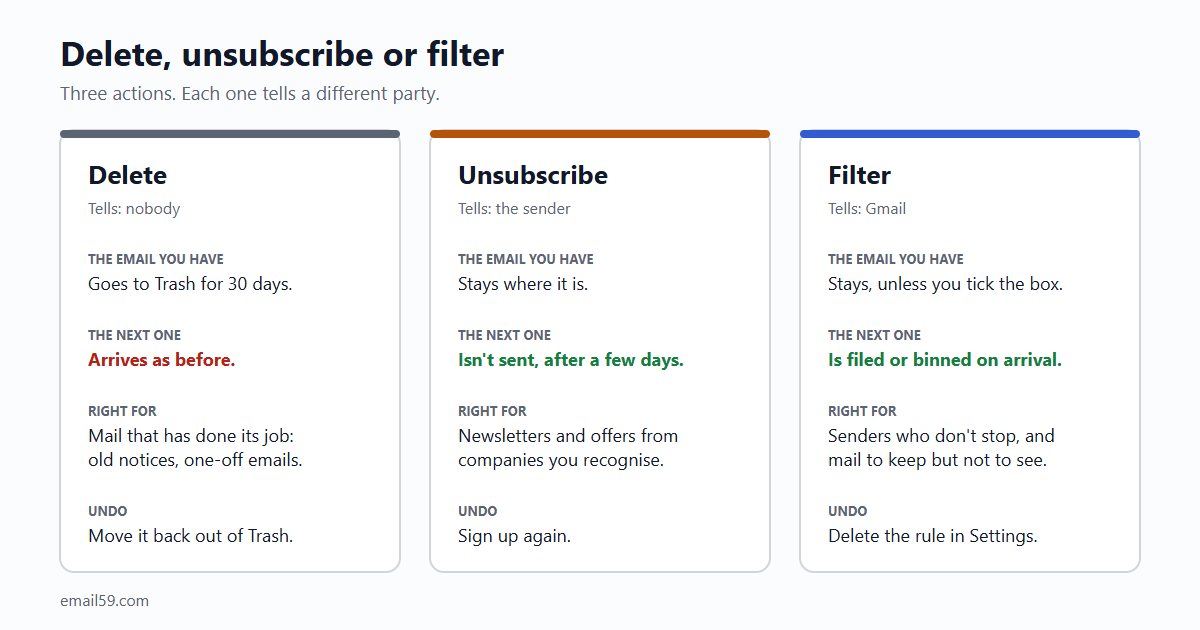
Three buttons in Gmail that people use as if they were one. Delete clears what is there. Unsubscribe asks the sender to stop. A filter makes Gmail deal with it for you. Here is when each one is right.
You delete the email from the shoe shop. Next week there's another. You delete that one too. A year on you've deleted fifty-two emails from the shoe shop and it has never once crossed the shop's mind that you'd like it to stop, because nobody told the shop.
Gmail gives you three different tools for unwanted mail, and each talks to a different party. One acts on the email in front of you, one sends a message to the sender, and one leaves an instruction with Gmail. Pick the wrong one and the mail keeps coming, or stops in a way you didn't mean.
Delete: about the past
Delete moves the email you're looking at to Trash. That's the whole effect. The sender isn't told, Gmail learns nothing from it, and the next one arrives as if nothing happened.
- It can be undone for 30 days. Gmail's help: "When you delete a message in Gmail, it's moved to Trash", and after 30 days "the message is permanently deleted."
- It frees no room until Trash is emptied. Mail in Trash still counts against your storage. If space is why you're deleting, open Trash and press "Empty Trash now" afterwards.
- It's right for: mail that has done its job. The delivery notice for a parcel that came. Last year's social notifications. One-off emails from someone who won't write again.
- It's wrong for: anything that comes every week. You've made yourself the filter, and you'll be doing it by hand for as long as the account exists.
Unsubscribe: a message to the sender
Unsubscribe is the only one of the three that reaches the sender. You're asking them to take your address off a list. If they do, the mail stops at the source, and it stops for good.
In Gmail you rarely have to hunt for the small grey link at the bottom of the email any more:
- Beside the sender's name at the top of an open email there's often an Unsubscribe link. Gmail shows it when the sender has declared how to unsubscribe, and sends the request for you.
- All of them on one page. On a computer, open More in the left menu and then Manage subscriptions. Gmail lists the senders with how many emails each sent you recently, and an Unsubscribe beside each. Google says this page "is gradually rolling out and may not be available to you yet", so don't worry if yours hasn't got it.
- Give it a few days. Google again: "It can take a few days for the sender to unsubscribe you." One more email after you pressed the button doesn't mean it failed.
Unsubscribe depends on the other side keeping its word. Shops, newsletters, apps and anybody who sends in volume to Gmail addresses now have good reason to: since 2024 Google's rule for anyone sending more than 5,000 messages a day is that "marketing and subscribed messages must support one-click unsubscribe" (the sender's side of that is in Gmail and Yahoo changed the rules in 2024 and The unsubscribe link).
- It's right for: anything you once signed up for, or that comes from a real company you recognise. Newsletters, shop offers, "we miss you" emails from an app you tried in 2022.
- It's wrong for: mail from a sender you've never heard of that looks like a scam. A link in such an email is a link you shouldn't open, whatever it's labelled. Use Report spam for those.
- It can't help with: notifications from a service you still use. There's often nothing to unsubscribe from; the switch is in that service's own notification settings, or you use a filter.
Filter: an instruction for Gmail
A filter is a rule you leave with Gmail: "mail that looks like this, do that with it." The sender never finds out and doesn't need to cooperate, which makes it the one tool that works on every sender.
- On a computer, click the sliders icon at the right end of Gmail's search box.
- Fill in what the mail looks like. The From line is usually enough: one address, or several as
from:(news@shop.example OR offers@shop.example). - Press Create filter at the bottom, then tick what should happen and press Create filter again.
What should happen is the part worth a minute's thought:
| Tick | What the next email does | Good for |
|---|---|---|
| Skip the Inbox (Archive it) | Arrives, but stays out of the inbox. Still found by search. | Receipts, statements, anything you may need one day and don't want to see today. |
| Apply the label | Arrives under a label of your choice. Combine it with Skip the Inbox. | A service's notifications you read once a week, in one sitting. |
| Mark as read | Arrives without the bold line and without adding to the unread count. | Mail you want kept but never want to be nagged by. |
| Delete it | Goes straight to Trash, and is gone for good 30 days later. | Senders who ignore an unsubscribe, and notifications you can't switch off at the source. |
- A filter looks forward. It acts on mail that arrives from now on. The form has a tick box to also apply it to the matching mail you already have; without that, the old ones stay where they are.
- "Delete it" is blunt. A filter on a whole shop also deletes that shop's order confirmations. Filter on the address the offers come from, not on the shop's name, and look at the search results before you create it.
- Filtered-out mail still uses room until Trash empties it. A deleting filter keeps the inbox clean; it frees storage 30 days late.
- You can see and undo all of them. Settings, See all settings, Filters and Blocked Addresses. Every rule is listed with Edit and Delete beside it. A forgotten filter is the usual answer to "why do I never get emails from them?".
Block and Report spam are neither
Two more buttons sit in the same menu and get mixed in.
- Block is a ready-made filter for one address: "After you block a sender, all future emails from them go to Spam." It tells the sender nothing. Google says so itself: "If you block a sender, it doesn't automatically unsubscribe you from their mailing list." Use it for a person or address you don't want to hear from.
- Report spam moves the email to Spam and tells Google about it: "Google receives a copy of the email and may analyze it to help protect users from spam and abuse." It's for mail you never asked for. For a newsletter you did sign up for, unsubscribing is the fair button; enough spam reports hurt a sender's delivery to everyone, including the people who wanted the mail.
Which one, in ten seconds
| The email is | Do this | Why |
|---|---|---|
| A one-off that has done its job | Delete | There is no next one to stop. |
| A newsletter or offers from a company you know | Unsubscribe | Stops it at the source, for good. |
| Still coming a week after you unsubscribed | Filter, "Delete it" | The sender isn't listening. Gmail will. |
| Notifications from a service you use | The service's settings, or a filter with a label and Skip the Inbox | You want the service, not the noise. |
| Receipts and statements | Filter: label, Skip the Inbox | Out of sight, there when the tax form asks. |
| A scam, or a sender you've never heard of | Report spam | Don't press anything inside it. |
| One person you don't want mail from | Block | Their mail goes to Spam from now on. |
The usual full treatment for a sender you're done with is two of them together: unsubscribe so no more is sent, then delete what's already there. Search from:news@shop.example, tick the box at the top of the list, click "Select all conversations that match this search", then the bin.
Doing it for a hundred senders at once
All of the above is one sender at a time, and a mailbox that's ten years old has hundreds. The hard part is knowing which senders are worth the minute. Gmail doesn't show a count per sender anywhere except the new subscriptions page.
Gmail cleanup on email59 does the counting. It reviews the mailbox (date, sender, subject, labels and size; never the body of an email), groups the mail nobody reopens, and lets you move a whole group to Trash: that's the delete half. Open a group and you get its biggest senders with a count each and, underneath, a Gmail filter for these senders: one line you copy, paste into Gmail's search box, and turn into a filter with the three steps above. That's the filter half, written for you.

It doesn't press Unsubscribe for you; that one stays a decision between you and each sender. The walk-through of the tool is in Gmail storage full? Three kinds of old email you can delete without opening one, and what the 16-letter password it asks for can and can't do is in A Google app password.
The short version
- Delete acts on the email you have. Nothing about next week changes.
- Unsubscribe asks the sender to stop. Right for real companies; allow a few days.
- Filter tells Gmail what to do with the next one. Works on everyone, and is listed under Settings where you can undo it.
- Block sends one address to Spam. Report spam is for mail you never asked for.
- Trash and Spam still count against storage until they're emptied.
Sources
- Gmail Help: delete or recover deleted Gmail messages (Trash, 30 days, Empty Trash now)
- Gmail Help: manage your email subscriptions (the Manage subscriptions page, "a few days", blocking is not unsubscribing)
- Gmail Help: create rules to filter your emails (creating, editing, deleting, exporting filters)
- Gmail Help: block or unsubscribe from emails
- Gmail Help: mark or unmark spam in Gmail
- Google: email sender guidelines (one-click unsubscribe for bulk senders)
- email59 Gmail cleanup
Gmail is a trademark of Google LLC. email59 is not affiliated with Google.