Gmail cleanup
A Google app password: what it opens, what it can't, and how to cancel one
Sixteen letters that let a mail app into your Gmail without your real password. Here is what they reach, what they can't touch, where Google keeps the two pages you need, and how to switch one off.
You wanted to connect an app to your Gmail. The app asked for an "app password". You opened your Google account, couldn't find such a thing, and closed the tab. That's the usual story, and it's a shame, because the thing itself is small and the idea behind it is a good one.
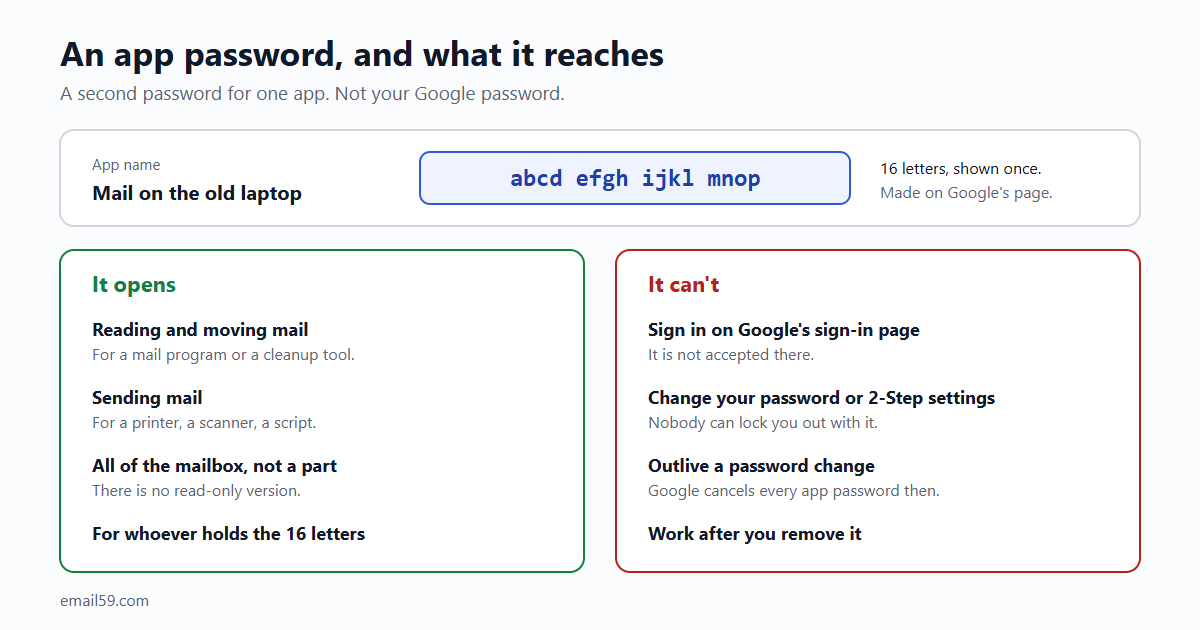
An app password is a second password that Google makes up for you: 16 letters, shown once. You give it to one app in place of your real password. The app can sign in with it; you can cancel it at any moment, and nothing else about your account changes when you do.
Why it exists at all
Once 2-Step Verification is on, signing in to Google takes your password and then a second step: a prompt on your phone, a code, a key. A browser can show you that second step. A program that fetches mail in the background can't. It has one box for a password and nowhere to show a prompt.
Google's answer for such programs is the app password. In Google's words it is "a 16-digit passcode that gives a less secure app or device permission to access your Google Account". It skips the second step, on purpose, for the one app that holds it. That's also why Google only hands them out to accounts that already have the second step: "App passwords can only be used with accounts that have 2-Step Verification turned on."
Google is plain that this is the older way in. The same page says app passwords "aren't recommended and are unnecessary in most cases", and that an app offering "Sign in with Google" should be connected that way instead. Use an app password when the app gives you no other choice, and treat it as what it is: a real key.
What it opens
- Mail, the old-fashioned way. The doors that still take a plain username and password are the mail ones: reading and moving mail (IMAP, or the older POP) and sending it (SMTP). These are what a desktop mail program, a printer that emails scans, or a cleanup tool uses.
- All of the mail, not a part. There's no "read only" or "this label only" version. An app that can sign in over IMAP can read any email, move it, and delete it. Whether it does is up to the app, which is why who you give it to matters more than anything else on this page.
- For whoever holds it. The name you type when you create one ("Printer", "email59") is a label for your own list. Google can't know where you paste the 16 letters, so the name doesn't tie them to that app. Anyone who has them, and your address, can use them.
What it can't do
- It isn't your Google password. It can't be typed into Google's sign-in page in a browser. So it can't be used to change your password, switch off 2-Step Verification, add a recovery phone or lock you out.
- It doesn't reveal your real password, and nothing can be worked out from it. The app never sees the password you use everywhere else.
- It doesn't outlive a password change. When you change your Google password, Google cancels every app password on the account. Handy to know for a bad day: one password change cuts off every app at once. (And less handy on a good day: the printer stops emailing scans until you give it a new one.)
- It doesn't survive being removed. Remove it on Google's page and the next sign-in with it is refused.
Getting one: two pages, about three minutes
The reason people don't find it is that Google doesn't put it in the menu. You go to it by address.
- Switch on 2-Step Verification, if it isn't on yet: myaccount.google.com/security, then "2-Step Verification". Google walks you through it. This is worth having whether or not you ever make an app password.
- Open the app passwords page: myaccount.google.com/apppasswords. Google may ask for your password again.
- Type a name you'll recognise in a year. The name of the app is the obvious choice. Press Create.
- Copy the 16 letters into the app. They're shown in four groups of four; the spaces are only there to make them readable. Google shows them once. If you lose them, you don't recover them: you remove that one and make another.
You don't need to write the letters down or remember them. The app keeps them, and a new one costs nothing.
When the page says no
Sometimes the address above opens a page that says the setting isn't available for your account. Google lists the reasons:
- 2-Step Verification isn't on yet. The commonest one. Do step 1 first.
- Your 2-Step Verification is set up with security keys only.
- It's a work, school or other organization account that doesn't allow them.
- The account is in Google's Advanced Protection program.
The last three are decisions someone made to keep the account tighter. There's no way round them, and there shouldn't be.
Cancelling one
Go back to myaccount.google.com/apppasswords. Every app password you've made is listed with its name and the date it was made. Press the bin (Remove) beside the one you want gone. That's all. Google's page: "Once revoked, the app can't access your account again."
A few habits that cost nothing:
- One app, one app password. Then cancelling one never breaks another, and the list tells you who has a key.
- Remove it when the job is done. A one-off job (moving mail to a new account, a big cleanup) needs the key for an afternoon, not for years.
- Look at the list once a year. If there's a name you don't recognise, remove it. Nothing you care about will break silently: the app it belonged to will ask you to sign in again.
- Lost a laptop or phone with a mail app on it? Remove its app password from another device. Google suggests exactly this.
Before you hand one over
An app password is safe in the sense that you can always take it back. It isn't safe in the sense of being harmless: for as long as it works, its holder can read your mail. Three questions are worth asking any app or site that wants one.
- What will you read? A straight answer names fields: senders and subjects, or whole emails.
- Where do the 16 letters live, and for how long? Stored encrypted and deleted when you disconnect is the answer you want.
- Who are you? A company name and a place, on a page you can find.
Here are the answers for Gmail cleanup on email59, since that's probably where some readers of this page came from. It reads the date, sender, subject, labels and size of each email, never the body and never an attachment. The app password is stored encrypted and only while the mailbox is connected; pressing Disconnect deletes it along with the review. email59 is run by Biz59 LLC in New York, and the rest is on the privacy page. After you disconnect, remove the app password on Google's page too. Then it's dead on both sides.
What the tool does once it's connected is in Gmail storage full? Three kinds of old email you can delete without opening one.
The short version
- An app password is a second, 16-letter password for one app that can't show Google's second sign-in step.
- It needs 2-Step Verification. The page is
myaccount.google.com/apppasswords; it's not in the menu. - It opens your mail for whoever holds it. It can't open Google's sign-in page or change anything about your account.
- The bin on that same page cancels it. Changing your Google password cancels all of them.
- One per app, removed when the job is done.
Sources
- Google Account Help: sign in with app passwords (what they are, when the option is missing, removing one, what a password change does)
- Google Account Help: turn on 2-Step Verification
- Rebex: using app passwords with Gmail over IMAP, POP3 and SMTP (what the sign-in does and doesn't reach)
- email59 privacy page: what Gmail cleanup reads and stores
Gmail and Google are trademarks of Google LLC. email59 is not affiliated with Google.