Gmail cleanup
Gmail storage full? Three kinds of old email you can delete without opening one
A full Gmail is mostly mail nobody reopens: years of social notifications, delivery notices and no-reply mail. Here is how to find them and clear them, by hand or in three steps.
The red bar turns up on an ordinary day: your storage is full, and you can't send or receive email until you free some. Somebody's reply to you has already bounced, and Google is offering to sell you more room every month, for good.
Before you pay, look at what the room is being used for. The 15 GB that comes with a Google account is shared by Gmail, Drive and Photos, and the Gmail part is rarely letters from people. It is the copy of every notification, receipt and reminder a machine has sent you since the day you opened the account.
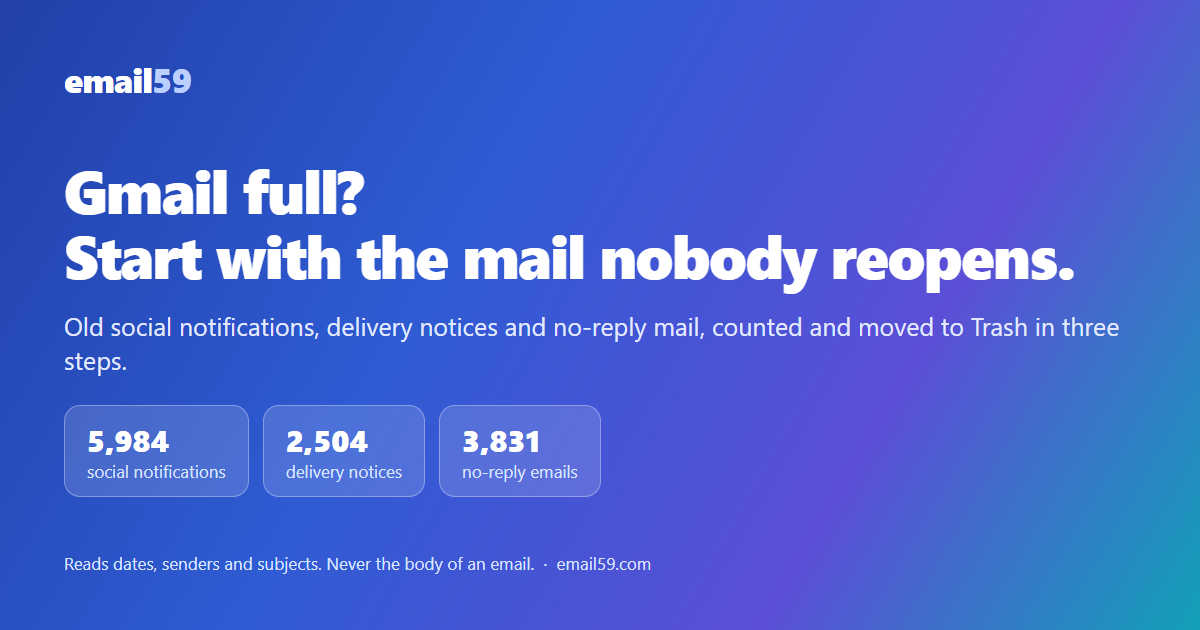
The three kinds nobody reopens
Most cleanup advice starts with "sort by size" and leaves you reading subject lines for an evening. There is a quicker cut. Three kinds of email are copies of something that lives somewhere else, so once they are a month old you can let them go unread:
- Social network notifications. "Jo commented on your photo." "You appeared in 12 searches." Every one of them is still on the network that sent it. The email was only a tap on the shoulder.
- Order and delivery notices. "Shipped." "Arriving today." "Delivered." The order is in your account at the shop, with the invoice. The parcel came years ago.
- No-reply mail. Anything from
noreply@ordo-not-reply@is a sender that won't even take an answer: weekly summaries, "your export is ready", parking receipts, sign-in alerts from 2021.
Two rules keep this safe. Keep anything you starred or that Gmail marked important, and for no-reply senders keep anything you gave a label or that carries an attachment (tickets and invoices arrive that way). What is left really is noise.
By hand, with three Gmail searches
You don't need any tool for this. Paste each line into the search box at the top of Gmail on a computer:
category:social older_than:30d -is:starred -is:important

from:amazon older_than:30d -is:starred -is:important

from:(noreply OR no-reply OR donotreply) older_than:30d -is:starred -is:important -has:attachment- Tick the box at the top left of the list. Gmail selects the 50 or 100 emails on the page and shows a blue line: Select all conversations that match this search. Click that line, then the bin.
- Look at the first page before you click. The searches are blunt. The second one catches every sender with "amazon" in its address, including the bills for Amazon's cloud service if you have one.
- For the big single emails,
larger:10Mlists everything over 10 MB. Those you do want to look at one by one: they are usually photos and documents from people. - The phone app can't select everything a search matches. Do this part on a computer.
This works, and plenty of people stop here. Its weak spot is that you are deleting blind. Gmail shows you one page at a time, never a count per sender, so you can't tell whether a search is about to remove 300 emails or 9,000 or whose they are.
In three steps, with counts first
Gmail cleanup on email59 does the same job the other way round: it counts first, shows you, and moves only what you tick. The pictures below are the tool as it is today, run on a demo mailbox with made-up people and senders.
1. Sign in and connect Gmail
You sign in to email59 with an email code, then connect your mailbox with a Google app password: a separate 16-letter password Google makes for one app. It isn't your Google password, it only opens mail, and you can cancel it on Google's page whenever you like. Your Google account needs 2-Step Verification for this; the page walks you through it. What those 16 letters can and can't do is in A Google app password.

2. Let it review the mailbox
email59 reads the date, sender, subject, labels and size of each email. It never reads the body of an email and never opens an attachment. Nothing is deleted in this step. On the first real mailbox we tried, 15,222 emails going back to 2018 were reviewed in 33 seconds.
3. Pick what goes to Trash
Now you see the numbers. The three safe groups are ticked for you, each with its count and size:

Not sure about a group? Open it. You get the biggest senders with a count each, the newest subject lines, and a ready-made Gmail filter for those senders in case you'd rather never receive them again.

Below the safe groups are Gmail's own sections, exactly as Gmail sorted them: Promotions, Social, Updates, Forums, Purchases, mailing lists and Spam. They start unticked, with an age you choose. Be slower here. Updates is where banks, bills and receipts live, which is why "Keep what Gmail marked important" is on until you turn it off.

One button moves what you picked. Starred mail stays where it is, always.

The step everyone misses: Trash still counts
Whichever way you clean, mail in Gmail's Trash keeps using your storage until Trash is emptied. Gmail empties it by itself after 30 days. If the red bar is up and you need the room today, open Trash in Gmail and click Empty Trash now, then do the same in Spam.
email59 never empties Trash for you, on purpose. For 30 days a wrong pick can be put back: open Trash, select the email, move it to the Inbox. Once you empty Trash, that's final, so have a look through it first.
And if the bar is still red after that, the rest is in Drive or Photos. Google's storage page shows the split between the three: 15 GB, three apps walks through it.
Questions worth asking before you connect a mailbox
You should be suspicious of any site that wants into your email. These are the answers for this one.
| Read and kept for the review | Never read |
|---|---|
| Date, sender and subject of each email | The body of any email |
| Read or unread, starred, marked important | Attachments (only whether there is one) |
| Your labels and Gmail's section | Contacts, calendar, Drive, Photos |
| Size | Your Google password |
- What happens to the review? It sits in email59's database so the page can count and group. Press "Delete the review from email59" and it's gone at once; forget, and it is deleted a week later.
- And the app password? Stored encrypted, only while the mailbox is connected. Disconnect deletes it together with the review. Then delete it on Google's page too, and it's dead everywhere.
- What does it cost? Reviewing a mailbox and moving mail to Trash cost nothing, and no card is asked for. One Gmail account per email59 account. There is a paid extra for people who want it done automatically; you won't need it for anything on this page.
- Does it work with a work Gmail? Usually. Some companies switch app passwords off; then Gmail refuses the sign-in and nothing is stored.
- Who runs it? Biz59 LLC, New York. email59 is not affiliated with Google. The whole of it is on the privacy page.
The short version
- A full Gmail is mostly machine mail. Start with social notifications, delivery notices and no-reply mail older than 30 days.
- Keep everything starred, important, labelled or with an attachment.
- By hand: three searches and "Select all conversations that match this search", on a computer.
- With counts first: connect, review, pick.
- Empty Trash yourself when you need the space now. Until then, everything can be put back.
Sources
- Gmail Help: manage your storage in Drive, Gmail and Photos
- Google One Help: how your Google storage works, and what happens over the limit
- Gmail Help: search operators (older_than, category, larger, has)
- Gmail Help: delete messages; Trash is emptied after 30 days
- Google Account Help: sign in with app passwords
- email59 Gmail cleanup: what it reads and never reads
Gmail is a trademark of Google LLC. Amazon is a trademark of Amazon.com, Inc. email59 is not affiliated with either.