Gmail
A forward you didn't set: checking Gmail for hidden forwarding, filters and connected apps after a scare
You clicked a link you shouldn't have, typed your password into a page that looked like Google's, or a laptop with Gmail open went missing. Changing the password feels like the end of it. It isn't: someone who got in once can leave a forward, a filter or a connected app behind, and those keep working after the password changes. Here is where they hide in Gmail, how to check each place in about ten minutes, and what to change once you've looked.
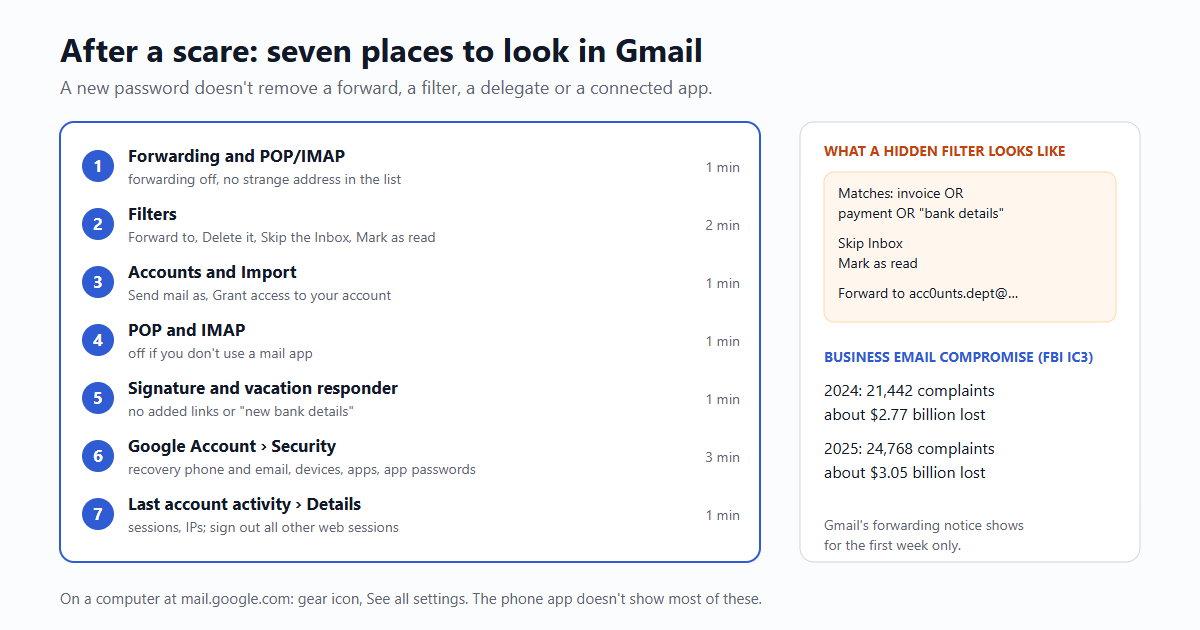
The short answer: change the password, then check seven places: the forwarding tab, your filters, "Send mail as" and "Grant access to your account", POP/IMAP, the recovery phone and email, the apps and app passwords on your Google Account, and the devices signed in. Remove anything you didn't set up yourself, sign out every other session, and turn on 2-Step Verification if it was off.
Why attackers leave a forward behind
A business mailbox is worth more read quietly than used loudly. Watching invoices and supplier emails for a few weeks tells a fraudster when a payment is due and how your suppliers write, which is the groundwork for the "our bank details have changed" email. The FBI warned about exactly this in November 2020 (Private Industry Notification 20201125-001): criminals were setting auto-forwarding rules in victims' webmail, where the desktop app didn't show them, and in one case took $175,000 from a US medical equipment company before anyone noticed.
| FBI IC3 figures | 2024 | 2025 |
|---|---|---|
| Business email compromise complaints | 21,442 | 24,768 |
| Reported losses | about $2.77 billion | about $3.05 billion |
| Rank by losses among all crime types | 2nd | 2nd |
Those are only the cases reported to the FBI's Internet Crime Complaint Center. The mailbox that was read before the fraudulent invoice went out is often a small business's, not the big company that paid.
The ten-minute check, in order
Do this on a computer, in a browser, at mail.google.com: the Gmail phone app doesn't show most of these settings. Gear icon, then See all settings.
| # | Where | What to look for | About |
|---|---|---|---|
| 1 | Settings › Forwarding and POP/IMAP | "Forward a copy of incoming mail to…" should be off, or point to an address you set. Open the address drop-down too: an attacker's address can sit in the list even when forwarding is off, ready for a filter | 1 min |
| 2 | Settings › Filters and Blocked Addresses | Any filter with "Forward to", "Delete it", "Skip the Inbox (Archive it)" or "Mark as read" you didn't make. The usual targets: words like invoice, payment, bank, wire, password, security, and your bank's or your accountant's address | 2 min |
| 3 | Settings › Accounts and Import | "Send mail as": only your own addresses. "Grant access to your account": no one you didn't add (a delegate reads, sends and deletes mail as you without your password, and a new password does not remove them). "Check mail from other accounts": only yours | 1 min |
| 4 | Same tab › POP/IMAP (in step 1) | If you don't use a mail app like Outlook or Apple Mail, POP and IMAP can be off. "Enable POP for all mail" downloads every email you ever received to whoever connects | 1 min |
| 5 | Settings › General | Signature and vacation responder: an attacker can add a link or a "new bank details" line to every email you send or every auto-reply | 1 min |
| 6 | myaccount.google.com › Security | Recovery phone and recovery email are yours; "Recent security events"; "Your devices" (sign out any you don't know); "Third-party apps with account access" (remove any you don't use); app passwords at myaccount.google.com/apppasswords | 3 min |
| 7 | Gmail inbox, bottom right › Details (under "Last account activity") | The recent web, mobile and mail-app sessions with their IP addresses and countries; "Sign out all other Gmail web sessions" | 1 min |
Two things Gmail does that help, and their limits. When forwarding is switched on, Gmail shows a notice at the top of the inbox for the first week only; if you missed that week, nothing reminds you. And Google may ask "Verify it's you" before a new forwarding address or filter is added from a session it finds risky; an attacker with your phone code, or on your own unlocked laptop, gets past it.
What the hidden filter usually looks like
Matches: invoice OR payment OR remittance OR "bank details"
Do this: Skip Inbox, Mark as read, Forward to acc0unts.dept@gmail.com
You never see the emails that matter most; the attacker sees all of them, and can reply from your account while you think the supplier has gone quiet. A filter that deletes replies from your accountant or your bank does the same thing in reverse. In the filter list, each filter is one line: read the right-hand side of every one, not just the names you recognise.
Then change these, in this order
- Remove what you didn't set up: the forwarding address, the filters, the delegate, the "Send mail as" address, the unknown apps.
- Change the password to one you have never used anywhere. Changing it also cancels every app password, so mail apps you do use will ask to sign in again; make new app passwords only for those.
- Sign out everywhere else: "Your devices" › sign out of each unknown one, and Gmail's "Sign out all other Gmail web sessions".
- Turn on 2-Step Verification (myaccount.google.com › Security), with a passkey or the Google prompt on your phone. Check it wasn't switched on by someone else with their phone.
- Look at Sent and Trash for emails you didn't write, and tell anyone who got one, by phone, especially if it mentioned money.
- If money moved, call your bank at once and ask for a recall, and report it at ic3.gov (US) or Report Fraud (UK, formerly Action Fraud). The FBI's Recovery Asset Team froze money in 66% of the BEC cases it acted on in 2024; it works best in the first days.
What isn't a sign of a break-in
- Spam that seems to come from you, in your own Spam folder or as bounces: the sender only typed your address into the From line. Google says this doesn't mean the account was taken; DMARC on your own domain is what stops it.
- A warning banner on an incoming email: that is Gmail judging the sender, not your account (what each banner means).
- An app password you made for a tool you use. It is a key you handed out on purpose; what it opens and how to cancel it is in the app password article. email59's Gmail cleanup connects that way: it shows under the name you gave it, and removing the app password, or disconnecting in the tool, ends its access.
Do the check once now even without a scare. Ten minutes, and you will know what a clean settings page looks like the next time you need to compare.
Sources: Google Gmail Help "Gmail security checklist" (answer 7036019), "Automatically forward Gmail messages" (answer 10957) and "Secure a hacked or compromised Google Account" (Accounts Help, answer 6294825), Oct 2026; Google Accounts Help "Manage third-party apps with account access"; FBI PIN 20201125-001 as reported by Dark Reading and BleepingComputer (Dec 2020); FBI IC3 Internet Crime Reports 2024 (Apr 2025) and 2025 (Apr 2026) as summarised by Nacha, Proofpoint and McDonald Hopkins. The filter example is made up for this article.
Gmail, Google and Outlook are trademarks of their owners. email59 is not affiliated with them.