Gmail
Archive is not delete: where archived Gmail goes, and why it still fills your storage
Archive makes an email disappear from your inbox, which feels like getting rid of it. It isn't: the email is still in Gmail, still searchable and still counting against your 15 GB. Where archived mail goes, how to find it, the phone setting that may have archived thousands of emails without you noticing, and when Archive is the right button after all.
Here is a common way to end up with a full Gmail. You keep the inbox tidy. Every morning you swipe the night's mail away on your phone. The inbox shows 12 emails. Then Google says your storage is full and email may stop arriving. Where did it all come from? From the swipe: on many phones, it archives.
What Archive actually does
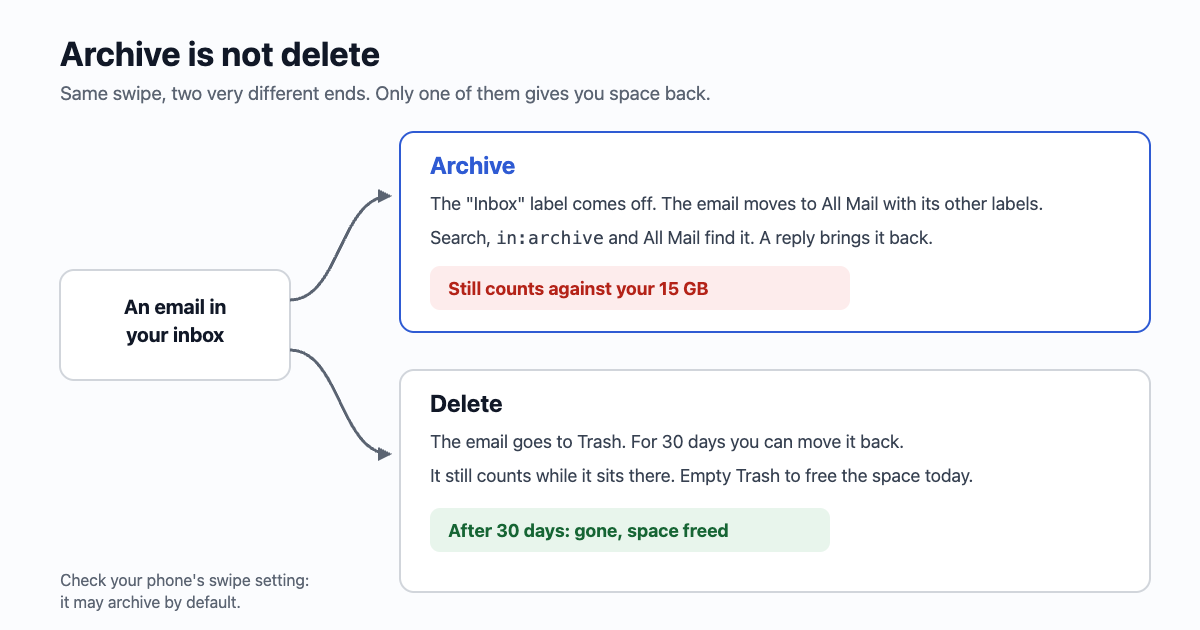
Gmail has no folders, only labels, and the inbox is one of them. Archive removes the Inbox label and nothing else. Google's help page puts it plainly: an archived message "no longer appears in your inbox, but you can still find it under the All mail label."
- It keeps every other label. An archived email labelled Taxes is still under Taxes.
- It leaves every tab. Promotions, Social and the other tabs show only mail in the inbox, so an archived advert is in none of them (how the tabs work).
- It comes back on a reply. If someone answers an archived conversation, the whole conversation returns to your inbox. If you want a busy group thread to stay away, use Mute instead: new replies in a muted conversation skip the inbox too, unless a reply names you directly in To or Cc.
- It uses the same space as before. Google counts every email and attachment in Gmail against your storage, including Spam and Trash. Archive changes where the email is shown, not whether it is stored.
Finding archived mail
Three ways, from the quickest:
- Search for the sender or a word you remember. Gmail's search covers archived mail by default; only Spam and Trash are left out (add
in:anywhereto include them). - Search
in:archiveto list archived mail only. If your Gmail doesn't recognise it,-in:inbox -in:sent -in:draftsgives nearly the same list: everything you keep that isn't in the inbox and isn't yours. - Open All Mail in the left menu (on a computer, under More). It shows everything except Spam and Trash, archived or not.
To put one back, open it or tick it and click Move to Inbox.
How big is your archive?
Gmail doesn't show the size of All Mail, but search can find the heavy part. Try these, one at a time:
| Search | Finds |
|---|---|
in:archive larger:10M | Archived emails over 10 MB: usually photos, videos and big PDFs. A few dozen of these can weigh more than ten thousand newsletters. |
in:archive has:attachment older_than:2y | Old attachments you probably saved elsewhere already. |
in:archive category:promotions | Adverts you swiped away instead of deleting. |
in:archive category:social older_than:30d | Social notifications, which the social site itself still shows you. |
For any of them, tick the box above the list and click Select all conversations that match this search, then Delete. They go to Trash; empty Trash if you need the space today, since Gmail would otherwise take 30 days to do it.
The phone setting that archives everything
The Gmail app lets you choose what a left and right swipe does. Archive is a common default, and many people never look. To check:
- Android: menu, Settings, General settings, Swipe actions. Pick Delete, Archive, Mark as read, Move to, Snooze or None for each side. In the same place, Default notification action decides whether the button on a new-mail notification archives or deletes.
- iPhone and iPad: menu, Settings, Mail swipe actions, then the left and right swipe.
- Apple Mail with a Gmail account: it has its own choice, in the iPhone's Settings under Mail, your Gmail account, then Advanced: Move discarded messages into the Archive mailbox or the Deleted mailbox.
A sensible set-up for someone with a full mailbox: one side Delete, the other Archive. Then a swipe is a decision, not a habit. Changing it doesn't touch what was archived before; the searches above deal with that.
When Archive is the right button
Archive is for email you're done with but may need again. Delete is for email you'll never look for. A rough line:
| Archive | Delete |
|---|---|
| Receipts and invoices (returns, warranties, taxes) | Adverts and sale announcements |
| Conversations with people | "Someone liked your post" and other notifications |
| Bookings and tickets, until the trip is over | Sign-in codes and one-time links, once used |
| Anything with a contract, an address or an account number | Newsletters you didn't read this week and won't next week |
If an email belongs on the right, it probably shouldn't arrive at all: Delete, unsubscribe or filter sorts out which of the three stops the next one.
Clearing it with counts first
email59's Gmail cleanup reviews your whole mailbox, archived mail included, not only what's in the inbox. It shows groups with how many emails each holds: older social notifications, Amazon and no-reply mail it marks as safe to delete, and Gmail's own sections. It reads the sender, subject, date and labels, never the body. You pick the groups; it moves them to Gmail's Trash and leaves emptying Trash to you, so for 30 days a wrong pick can be put back. Starred mail is never moved. It is free to use.
And if your storage bar is still red after the email side is clean, the space is in Drive or Photos: 15 GB, three apps shows how to tell.
The short version
- Archive removes the Inbox label. The email stays in All Mail, keeps its other labels and keeps using your storage.
- Find it with search,
in:archive, or All Mail. A reply brings it back; Mute keeps it away. - Check your phone's swipe setting: it may archive by default.
- Archive what you may need again. Delete the rest, and empty Trash if you need the space today.
Sources
- Gmail Help: archive or mute Gmail messages (All mail, in:archive, replies return to the inbox)
- Gmail Help: manage your storage in Drive, Gmail and Photos
- Google One Help: how storage works, and what happens over the limit
- Gmail Help: search operators (in:anywhere, larger, has:attachment, older_than, category)
- Gmail Help (Android): general settings, swipe actions and default notification action
- Gmail Help: delete messages; Trash is emptied after 30 days
Gmail is a trademark of Google LLC; iPhone is a trademark of Apple Inc.; Amazon is a trademark of Amazon.com, Inc. email59 is not affiliated with them.