Gmail
Primary, Promotions, Social, Updates: who sorts your Gmail, and how to move a sender for good
Gmail splits your inbox into Primary, Promotions, Social, Updates and Forums without asking: its own sorting guesses from the sender and the message, and you can correct it. What each tab is meant to hold, why the tabs are labels and not folders, the difference between moving one email and moving a sender for good, and how to clear a whole tab in one go.
Most people meet the tabs when something goes missing. The school newsletter is in Promotions, the bank's statement notice is in Updates, a friend's email sent from a shop's booking page sits next to the shop's adverts. Then the tabs look like folders someone else is filling. They behave a little differently, and once you know how, you can make them work for you or switch them off.
What each tab is meant to hold
Google's own descriptions, in short:
| Tab | Meant for | Often ends up there by mistake |
|---|---|---|
| Primary | Email from people you know, and anything that doesn't fit another tab. | Newsletters you once replied to. |
| Promotions | Deals, offers and other marketing. | A small shop's real reply, a club's newsletter, an invoice from a company that also sends adverts. |
| Social | Social networks and photo or video sharing sites. | A message a person sent you through a social site, which may need an answer. |
| Updates | Confirmations, receipts, bills, statements, reminders. | A security alert or a sign-in code you are waiting for. |
| Forums | Mailing lists, groups and discussion boards. | Not much, and many accounts don't show this tab at all. |
Under Customize there is also a tick box to show starred mail in Primary whatever its tab, so a star works as a quick override. Gmail also has a category you can search but can't show as a tab: category:reservations finds flights, hotel and restaurant bookings wherever they were sorted.
A tab is a label, not a folder
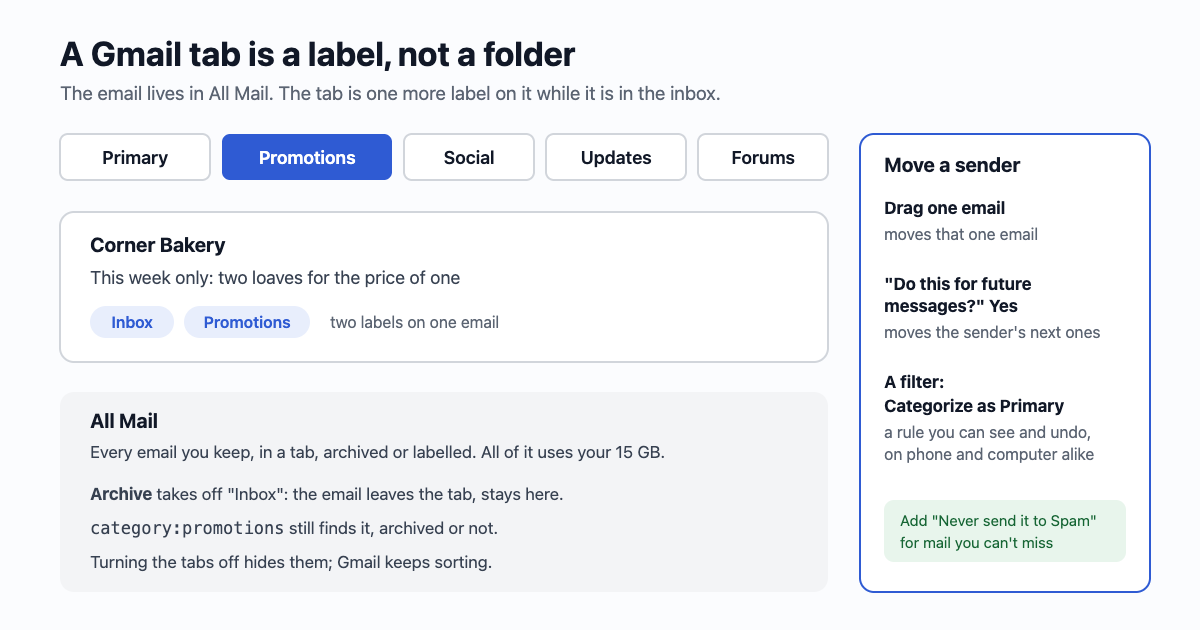
This is the part that clears up most of the confusion. An email in the Promotions tab carries two labels: Inbox, and Promotions. Every email you keep, whatever its tab, also sits in All Mail. Three things follow from that:
- Archiving takes it out of the tab. Archive removes the Inbox label, so the email leaves the tab too, and Gmail says archived email doesn't show in any tab. It is still in All Mail and still uses your storage (more in Archive is not delete).
- Search still sees the category.
category:promotionsfinds every promotion Gmail has sorted, in the inbox or archived. You can add more words:category:social older_than:1y. - Nothing in a tab is lost. A missing email in Gmail is almost always in a tab, in All Mail (archived), in Spam, or in Trash, in that order of likelihood. Searching for the sender's address finds it in any of the first two; Spam and Trash need
in:anywhereor a look inside them.
Moving one email, and moving a sender for good
There are three ways to move mail between tabs, and only two of them change what happens next time.
- Drag one email onto another tab (on a computer). Gmail moves it and, for most senders, shows a small box at the bottom: Do this for future messages from the sender? Click Yes. Without that click you have moved one email, and Gmail treats the drag only as a hint for its sorting. The same choice comes from right-clicking an email and picking Move to tab.
- On a phone, open the email, tap the three dots, Move to, and pick the tab. This moves that email. Whether it also asks about future mail depends on the app version, so don't count on it: use the next step for anyone important.
- A filter is the reliable way. Open an email from the sender, three dots, Filter messages like this, keep the From line, Create filter, tick Categorize as and choose Primary (or any tab). Tick Also apply filter to matching conversations to move the old ones too. A filter is a rule you can see and undo in Settings, under Filters and Blocked Addresses.
For the email you must never miss, a school, a doctor's office, your own business's website form, add two ticks in the same filter: Never send it to Spam and Always mark it as important. The tabs and Spam are separate decisions in Gmail, and a filter can settle both.
One thing a filter can't fix: if the sender writes from a different address each time (a shop's booking system, a marketplace), filter on what stays the same, usually the part after the @ (from:@bookings.example) or a word in the subject.
Switching the tabs off
Some people are happier with one list. Turning the tabs off changes only what you see; Gmail still sorts in the background, so category: searches keep working.
- Computer: the gear icon at top right, then under Inbox type pick Default and click Customize to untick the tabs you don't want. Untick them all and you get one inbox. Another inbox type (Important first, Unread first, Starred first) also drops the tabs.
- Android: menu, Settings, your address, Inbox categories, untick.
- iPhone and iPad: menu, Settings, Inbox type, Inbox categories, untick.
The phone and computer settings are separate. People often switch tabs off in the app and then wonder why the browser still has them.
Clearing a whole tab
A Promotions tab with 9,000 emails is mostly years of adverts. Clearing it takes one search:
- Type
category:promotions older_than:6min Gmail's search bar. Adjust the age to taste;older_than:1yis a cautious start. - Add
-is:starredif you star things you mean to keep. - Tick the box above the list, then the line that appears: Select all conversations that match this search. Without it, Gmail selects only the 50 on screen.
- Delete. They go to Trash, where they still count against your storage for up to 30 days unless you empty it.
Do the same with category:social: notifications that a friend posted something, which you can always see again on the social site itself. Be more careful with category:updates, which holds receipts and statements you may want for taxes or returns; category:updates older_than:2y -has:attachment is a gentler version.
If you'd rather see the counts before you choose, email59's Gmail cleanup lists the same Gmail sections (Promotions, Social, Updates, Forums) with how many emails each holds, next to older social notifications and no-reply mail it marks as safe to delete. It reads the sender, subject, date and labels, never the body, and moves only the groups you pick to Gmail's Trash. Starred mail is never moved. It is free to use.
Why a sender lands in Promotions at all
If you send email yourself, a newsletter for your shop or a club, Promotions isn't a punishment. It is where Gmail puts mail that looks like marketing, and it still counts as the inbox: people do go there, often when they're in the mood to read it. Two things help: send from a name people recognise, and write like a person, not a catalogue. Asking readers to drag one email to Primary and click Yes is the honest version of every "move us to Primary" trick; it works for the readers who care. And keep the unsubscribe link plain and working (why that matters): a reader who can't leave reports spam instead, and that costs more than a tab.
The short version
- Gmail's tabs are labels on emails in your inbox; every email is also in All Mail. Archived email is in no tab.
- Dragging moves one email; click Yes on "Do this for future messages", or make a filter with Categorize as, to move a sender for good.
- Switch tabs off in Settings under Inbox type (computer) or Inbox categories (phone), separately on each.
category:promotions older_than:6mplus "Select all conversations that match" clears a tab in one go.
Sources
- Gmail Help: add or remove inbox categories and tabs (what each tab holds, drag to move, category: search, archived mail not in tabs)
- Gmail Help: create rules to filter your emails (Categorize as, Never send it to Spam)
- Gmail Help: search operators (category, older_than, is:starred, in:anywhere)
- Gmail Help: archive or mute Gmail messages
- email59 Gmail cleanup: what it reads and never reads
Gmail is a trademark of Google LLC. email59 is not affiliated with Google.