 email
Gmail
Two-step verification for a small business Gmail: passkey, authenticator app or text message
When someone steals or guesses your Google password, two-step verification is the deadbolt between their hands and your business email, supplier invoices, client contracts, and bank reset links. But not all second steps protect you equally. Here is what real attack data from Google and university researchers proves, how passkeys, authenticator apps, and SMS text codes actually compare, and how to protect a small business account without locking yourself out.
A small business Gmail or Google Workspace account is rarely just an email inbox. In practice, it is the master key to your entire company. It holds the password reset links for your domain registrar, your cloud hosting, your payment processor, your accounting software, and your business bank account. If an attacker acquires your password through a credential dump from another breached website, a single step lets them reset every other service you operate in twenty minutes.
Turning on 2-Step Verification (2SV) is the single most effective security measure you can take on Google. But Google offers several different ways to complete that second step: text messages, phone call codes, Google prompts, authenticator apps, and passkeys. Small business owners often choose text messages simply because it is familiar, only to run into travel lockouts, SIM-swap risks, and shared-inbox headaches later.
The real-world numbers: Google, NYU and UCSD attack data
Security advice often sounds like theoretical scaremongering. Fortunately, we have extensive real-world empirical data on exactly how well each second-step method works against live attacks. Google conducted a massive joint study with researchers from New York University (NYU) and the University of California, San Diego (UCSD), tracking attack prevention across hundreds of thousands of real-world intrusion attempts.
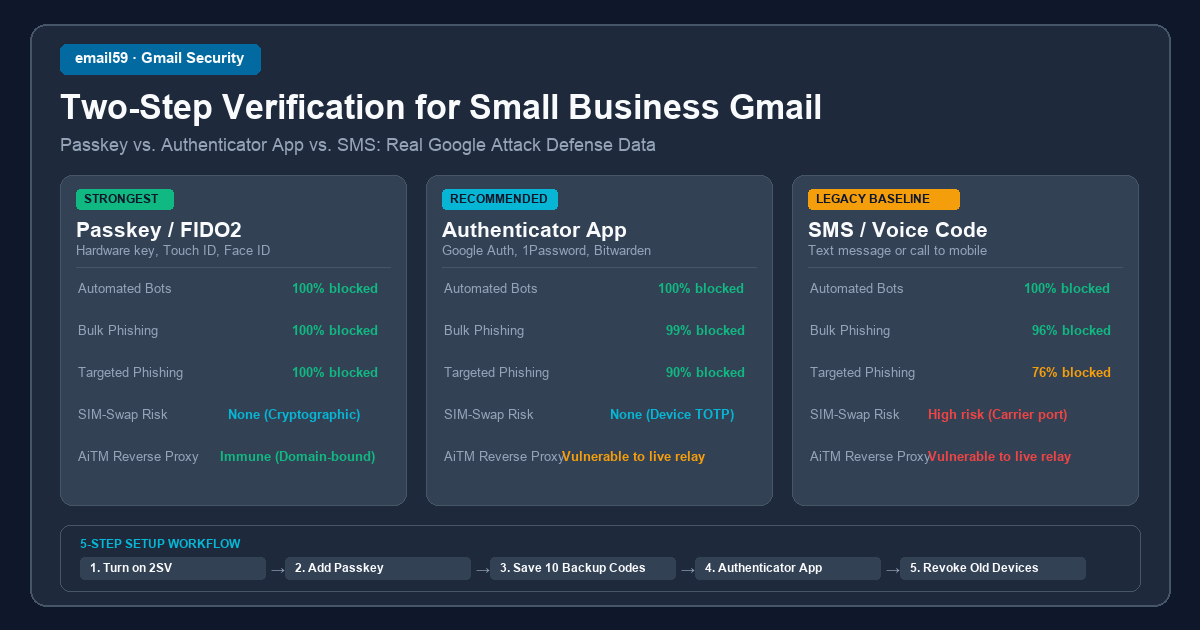
- SMS text message codes: Blocked 100% of automated bot attacks, 96% of bulk phishing attacks (generic fake login pages), and 76% of targeted attacks. SMS is infinitely better than no second step, but that 24% failure rate in targeted attacks is real. Attackers can intercept or bypass SMS using real-time phishing proxies, social engineering carrier support (SIM-swapping), or SS7 telecommunication exploits.
- On-device Google Prompts: Blocked 100% of automated bot attacks, 99% of bulk phishing attacks, and 90% of targeted attacks. Tapping "Yes, it's me" on your phone screen stops attackers who don't hold your physical mobile device. However, prompts are still vulnerable to "MFA prompt fatigue" (bombarding your phone with push notifications at 3 AM until you tap approve by mistake) and real-time reverse proxies.
- Security keys and Passkeys (FIDO2 / WebAuthn): Blocked 100% of automated bot attacks, 100% of bulk phishing attacks, and 100% of targeted / reverse-proxy (AiTM) phishing attacks. Passkeys are mathematically bound to the exact web domain in your browser's address bar. Even if an attacker creates an identical-looking fake Google login page and tricks you into entering your password, your browser's cryptographic handshake refuses to deliver the passkey to any domain other than
accounts.google.com.
Side-by-side comparison: which method fits your business?
Each verification method involves trade-offs between phishing resistance, account sharing, SIM-swap vulnerability, and day-to-day convenience. Here is how they stack up side by side:
| Method | Stops Automated Bots | Stops Bulk Phishing | Stops Targeted / AiTM Phishing | SIM-Swap Risk | Shared Account Friendly | Setup Difficulty |
|---|---|---|---|---|---|---|
| Passkey / FIDO2 Hardware Key | 100% | 100% | 100% (Immune) | None (Zero) | Good (multiple keys or synced vault) | Moderate (under 3 min) |
| Authenticator App (TOTP) | 100% | 99% | Vulnerable to live relay | None (Device-bound) | Excellent (shared vault TOTP) | Easy (scan QR code) |
| Google Prompt (Phone tap) | 100% | 99% | 90% (Vulnerable to fatigue) | None | Poor (tied to 1 personal device) | Very Easy (built into Google app) |
| SMS / Voice Call Code | 100% | 96% | 76% (Vulnerable to relay/SIM-swap) | High (Carrier port-out) | Poor (calls 1 founder's phone) | Very Easy (phone number) |
| Backup Codes (10 single-use) | 100% | 100% (Offline) | Vulnerable if typed on fake page | None | Emergency recovery only | 1 minute (print or store) |
Five concrete setup steps: secure without lockouts
Setting up 2-Step Verification takes less than ten minutes. Follow these five steps in exact sequence to maximize your account's defense while ensuring you never get locked out if you drop your phone in the ocean.
- Turn on 2-Step Verification in Google Account Security: Open your browser, sign in to your Google Account, and navigate directly to
myaccount.google.com/security. Under "How you sign in to Google", click 2-Step Verification and select "Turn on". Google will verify your identity using your existing phone number or device prompt. - Add a primary Passkey: On the 2-Step Verification page, click Passkeys and security keys, then "Create a passkey". You can link your computer's built-in biometric sensor (Apple Touch ID, Windows Hello), an enterprise hardware security key (such as a YubiKey), or your password manager (1Password, Bitwarden). Going forward, signing in from your work machine takes a single fingerprint tap—faster and far safer than typing a six-digit code.
- Generate and safely store 10 single-use Backup Codes: Scroll down to the Backup codes section and click "Get backup codes". Google generates ten 8-digit, single-use codes. Do not take a screenshot with your phone, and do not save an unencrypted text file named "google-codes.txt" on your desktop. Print the sheet out and keep it in your office safe, or paste the numbers into a secure note inside your encrypted password vault. If your phone is lost or broken while traveling, these codes are your only immediate way back into your account.
- Set up an Authenticator App as your reliable fallback: Under 2-Step Verification, select Authenticator app. Open your preferred authenticator (Google Authenticator, Microsoft Authenticator, 1Password, or Bitwarden) and scan the QR code displayed on the screen. Unlike SMS, authenticator apps generate time-based one-time passwords (TOTP) entirely offline: they work on international flights, when roaming without cellular service, and during carrier outages.
- Clean up old trusted devices and review App Passwords: Return to the main Security tab and scroll down to Your devices. Review every computer, tablet, and smartphone listed. Click on any old laptops, traded-in phones, or public workstations you used six months ago and select "Sign out". Finally, check the App passwords section to ensure no abandoned third-party services still hold unattended background access.
Practical small business situations
Running a business mailbox introduces operational wrinkles that consumer security guides ignore. Here is how to handle the three most common hurdles small teams face when locking down Gmail.
1. What happens to legacy mail apps and background tools
The moment you activate 2-Step Verification, older email programs (like older versions of Thunderbird or legacy Outlook), office multifunction scanner-printers that email PDFs, and automated server backup scripts will immediately stop working. They will throw continuous authentication errors.
This happens because background utilities only have fields for a username and a plain password—they have no web browser interface capable of displaying a 2-Step prompt or asking for an authenticator code. Google's answer is an App Password: a randomly generated 16-character passcode that you paste into that specific software in place of your real Google password.
An app password opens mail access over standard IMAP and SMTP, but it cannot sign into your Google account settings, cannot disable your 2-Step Verification, and can be revoked with a single click at any time. For a full walkthrough of what app passwords can touch, where they fail, and how to safely revoke them, read our detailed guide on A Google app password: what it opens, what it can't, and how to cancel one.
2. The post-scare check: why 2SV does not revoke existing forwarding rules
If you are enabling 2-Step Verification after a security scare—such as a team member clicking a suspicious link, typing credentials into a fake portal, or losing an unencrypted company laptop—enabling 2SV is only half the repair.
Enabling 2SV and changing your password locks the front door against future logins. However, it does not automatically revoke forwarding rules, Gmail inbox filters, or connected third-party OAuth apps that were established before the password change. Attackers who gained access for even five minutes frequently create an auto-forwarding rule or an inbox filter that silently forwards incoming invoices to an external address and moves the original mail straight to Trash.
Whenever you suspect an account compromise, follow our complete step-by-step checklist on checking Gmail for hidden forwarding, filters and connected apps after a scare. It covers the seven critical places in Gmail settings you must inspect to ensure no unauthorized backdoors remain open.
3. The shared inbox dilemma: info@, contact@ and team mailboxes
Small businesses frequently share a single generic mailbox (such as info@example.com, sales@example.com, or hello@example.com) among two or three team members. When someone turns on SMS-based 2-Step Verification for this account, it quickly becomes an operational nightmare: every time a partner or teammate attempts to log in, Google sends a text code to the founder's personal mobile phone, prompting constant "What's the code?" messages during customer calls and weekends.
Here are the three cleanest ways to secure a shared business inbox without relying on text messages:
- Google Workspace Email Delegation (Recommended): If your business uses Google Workspace, do not share the primary account's login credentials at all. Instead, give each team member their own individual Workspace user account with their own passkey. Then, use Gmail's Delegation feature to grant them direct access to the shared mailbox. Team members can switch between their personal inbox and the shared inbox in their browser without ever knowing or typing a shared password.
- Shared Password Manager Vault with TOTP: If you are running on a standard free Gmail account or a single mailbox budget, store the account credentials in a team password manager (such as 1Password for Teams or Bitwarden). When setting up the Authenticator App in Google, scan the QR code directly into the password manager entry. The password manager will generate the rotating 30-second verification code inside every authorized team member's browser extension automatically. No one needs to text anyone for a code.
- Multiple Hardware Security Keys: Google allows you to register multiple physical FIDO2 security keys (such as YubiKeys) on a single account. You can hand a physical security key to each partner or key employee. When logging in, they simply insert their key and tap it.
Summary: the small business baseline
- Never rely on SMS as your sole second step: While SMS stops automated spray bots, it leaves your business open to SIM swaps and real-time phishing attacks.
- Adopt Passkeys for daily hardware: Set up a passkey on your primary laptop and work phone for fast, phishing-proof authentication.
- Keep an Authenticator App in your vault: Use an authenticator app stored inside your password manager for travel independence and offline reliability.
- Print 10 single-use backup codes: Store them in your physical office lockbox or secure safe to guarantee recovery if a device breaks.
- Audit after any scare: Remember that a password change and 2SV do not remove hidden mail forwarders or rogue connected apps.