Small business email
One address, two people: running a shared business inbox without answering twice
Two of you run the business and one address is on the website. A customer writes to hello@, you both see it, and one of two things happens: you both answer, or neither of you does because each thought the other would. Here are the three ways small teams usually set up a shared address, what each one does to "who replied?", and what to change on the day one of you leaves.
The address itself is the easy part. Any mail provider will give you an info@ or hello@. The hard part is the habits around it: who answers, how the other one finds out, and who still has the keys a year later. Big support teams buy a help desk for this. A bakery, a two-person design studio or a family-run rental doesn't need one. It needs one of the setups below, and a few small rules.
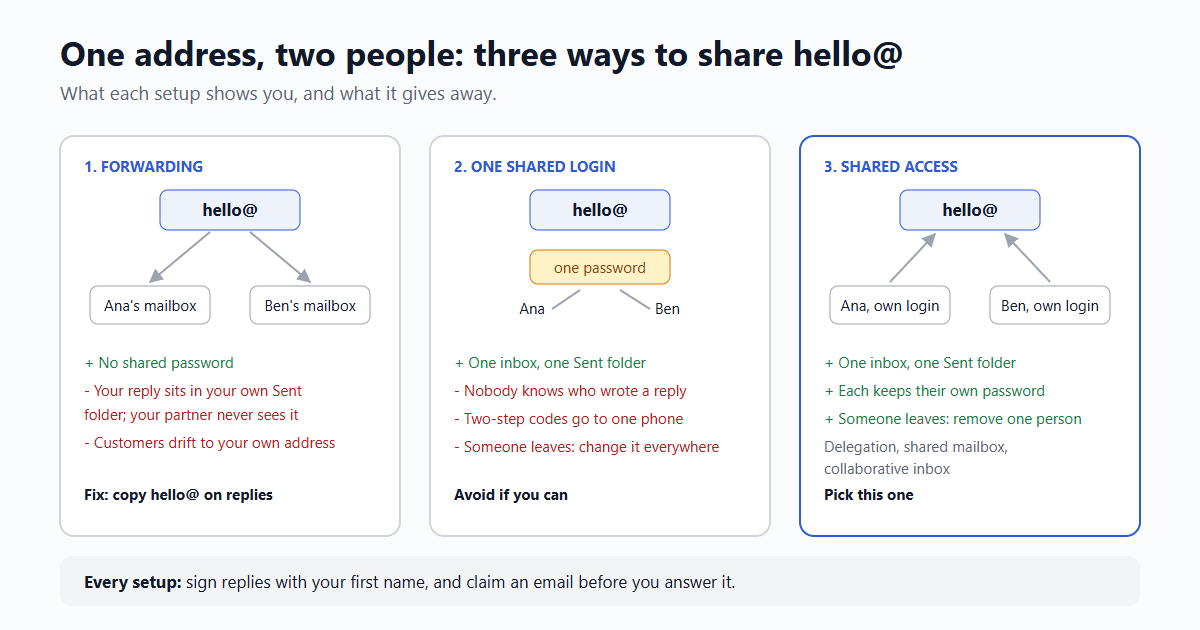
Setup 1: forward it to both of you
hello@ is an alias or a group that copies every email into each person's own mailbox. It's free with almost every provider and takes two minutes.
- Good: nobody shares a password. Each of you reads mail where you already read mail.
- The catch: your reply goes out from your own mailbox, so it lands in your own Sent folder. Your partner never sees it. Nothing tells them the email has been handled.
- The second catch: the customer's next email often comes back to you directly, not to hello@, because that's the address your reply came from. The conversation slowly leaves the shared address.
Forwarding works if one person answers everything and the other only needs to know. With two people answering, you need the habits further down, or you will answer twice.
Setup 2: one mailbox, one password, both of you
hello@ is a real mailbox and you both sign in to it. This is the most common setup in small businesses, because it's what you get when you create the address and share the login on a sticky note.
- Good: one inbox, one Sent folder. If an email has a reply under it, it's been answered.
- The catch: nobody can tell who wrote a reply, unless you sign it.
- The bigger catch: a shared password. Two-step verification sends its code to one phone, so either that person has to be around for every new sign-in, or you switch it off. A password that lives in two heads, a group chat and a browser on the shop laptop is the one most likely to leak. And when somebody leaves, you change the password and every device signs out at once.
Microsoft says this plainly about its own shared mailboxes: they aren't meant for direct sign-in, and the admin should block sign-in for the mailbox's own account. That advice holds for every provider.
Setup 3: one mailbox, each of you with your own key
hello@ is its own mailbox, and each of you opens it while signed in as yourself. The big providers all have a version of this:
| Provider | What it's called | Worth knowing |
|---|---|---|
| Gmail (personal or Workspace) | Delegation | Up to 10 delegates on a personal Gmail account, 1,000 on a work account. A delegate can read, send and delete, but can't change the password. Emails a delegate sends show the delegate's own address too, so the customer can see who wrote. |
| Google Workspace | Collaborative inbox (a Google Group) | Members can take a conversation, assign it to someone, and mark it complete, "no action needed" or duplicate. The closest thing to a help desk without buying one. |
| Microsoft 365 | Shared mailbox | Needs no license of its own up to 50 GB; each person needs their own licensed mailbox. Up to 25 people. "Send as" or "send on behalf", set per person. Anyone with access can delete messages. |
- Good: one inbox and one Sent folder, like setup 2, but each of you keeps your own password and your own two-step verification.
- Leaving is clean: remove one person's access and nothing changes for anyone else.
- The catch: it takes ten minutes of settings, and the phone apps tend to handle shared mailboxes less smoothly than the web version.
If your provider offers it, this is the one to pick. It's the only setup that answers "who replied?" without anyone having to remember a rule.
Three habits that stop the double reply
Whatever the setup, two people answering one address need to see each other's work. These cost nothing:
- Sign every reply with your first name. "Thanks, Ana" under a reply from hello@ tells the customer and your partner who's on it. In a shared login, this is your only record.
- Copy hello@ on replies you send from your own address. With forwarding (setup 1), a Bcc to hello@ puts your reply into your partner's mailbox too. Some teams do it the other way round: reply from your own address with hello@ in Cc, so the customer's next message reaches both of you.
- Claim before you write. A label, a star, a flag, or an assignment in a collaborative inbox: whoever opens an email first and means to answer it marks it. Agree on one sign and use it for a week; after that it's habit.
If you split the work, say how: by topic ("Ben does bookings, Ana does invoices") or by day. Then a missed email has an owner instead of two people who each assumed.
What changes when someone leaves
People leave small businesses too: a partner moves on, the person who did the admin goes back to school. The address stays, and so does everything it signs in to. Go through this list the same week:
- Access: remove their delegation or shared-mailbox access. If you used a shared login, change the password now and sign out every device.
- Recovery details: check the mailbox's recovery phone and recovery email. If the phone number is theirs, they can still reset the password next year.
- Accounts the address signs in to: your domain registrar, website host, payment provider, social pages, suppliers' portals. Each one sends its password resets to hello@, so whoever controls hello@ controls them. Write the list down while you're at it.
- Forwarding rules: look for a rule that copies hello@ to a personal address. People set these up and forget them.
- Their own business address: don't delete it the same day. Set an auto-reply that points to hello@ for a few months, or give someone access to it, so customers who saved it still reach you.
When there's no domain yet
If you're just starting and don't have your own domain, you don't need one to stop answering customers from a personal Gmail. An email59 account comes with two mailbox addresses at email59.com, 5 GB each, read and written in the browser. A mailbox doesn't share one address between two sign-ins yet, so the honest setup for two people is each of you opening your own account and writing from your own address, with the habits above. When you get a domain, setup 3 on a provider that has it is the one to move to.
And if a personal Gmail has been doing this job for years, the Gmail cleanup clears out the old notifications and order emails first.
The short version
- Forwarding: free and private, but you can't see each other's replies. Copy hello@ on every reply.
- One shared login: one Sent folder, but no record of who wrote and one password in many places. Avoid it.
- Shared access (delegation, shared mailbox, collaborative inbox): one inbox, your own passwords, clean exits. Pick this if you can.
- Every setup: sign replies with your name, claim an email before you answer, split the work by topic or day.
- Someone leaves: access, recovery phone, forwarding rules, and the list of accounts that reset to hello@.
Sources
- Gmail Help: set up mail delegation (10 delegates personal, 1,000 work; what delegates can and can't do)
- Google Workspace Admin Help: collaborative inbox features (assign, resolve, duplicate)
- Microsoft Learn: about shared mailboxes (50 GB without a license, 25 users, block direct sign-in)
Gmail and Google Workspace are trademarks of Google LLC; Microsoft 365 of Microsoft. email59 is not affiliated with them.