 email
emailThe email59 app
Leaving AWS WorkMail before 31 March 2027, without losing mail on your phone
Amazon WorkMail closes on 31 March 2027. After that day there is no console and no mailbox to log in to, so anything still in WorkMail is gone. That leaves about five months from now. Most of the work is an afternoon per domain; the part people leave too late is the mail itself, because the export AWS offers needs someone who can program. Here are the dates, the two ways out, and an order of steps that keeps mail arriving and readable on your phone the whole time.
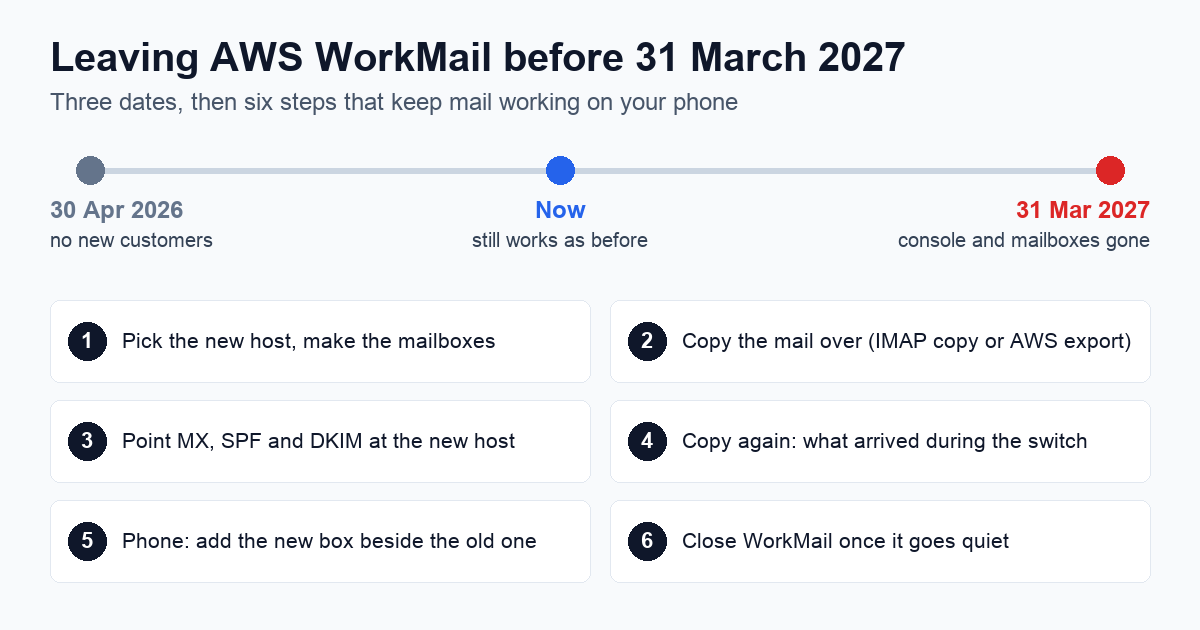
The dates
| Date | What changes |
|---|---|
| 30 April 2026 | WorkMail stopped taking new customers. Accounts that signed up before keep every feature. |
| Until 31 March 2027 | Everything works as it does today: mail, calendars, phone access, the console. |
| After 31 March 2027 | No access to the WorkMail console or to any WorkMail resource. Mail left there can't be reached. |
Where AWS says to go
AWS names three replacements on its end-of-support page: Kopano Cloud, Zoho Mail and Zoom Mail, and says any other provider is fine too. Whatever you pick, check two things before you pay: that its plan includes IMAP (some free plans don't, Zoho's newer free accounts among them), and that it hosts mail for your own domain, since that's what your WorkMail addresses are.
Getting the mail out: two ways
| IMAP copy | AWS mailbox export | |
|---|---|---|
| What you need | Each mailbox's address and password, and a copy tool (many hosts have one built in) | A WorkMail admin, a private S3 bucket, a KMS key, an IAM role, and someone to call the API (StartMailboxExportJob) |
| What comes out | Mail, folder by folder, straight into the new mailbox | Mail and calendar items as MIME files in one encrypted .zip in S3 |
| What stays behind | Calendars, contacts and tasks | Contacts and tasks |
| Good for | Most small teams: point the new host's import at WorkMail and wait | Archives you want to keep outside any mail host, or mailboxes whose passwords you don't have |
For an IMAP copy, these are WorkMail's servers. Use the region your organisation lives in (the WorkMail console shows it).
| Region | IMAP (port 993, SSL) | SMTP (port 465, SSL) |
|---|---|---|
| US East (N. Virginia) | imap.mail.us-east-1.awsapps.com | smtp.mail.us-east-1.awsapps.com |
| US West (Oregon) | imap.mail.us-west-2.awsapps.com | smtp.mail.us-west-2.awsapps.com |
| Europe (Ireland) | imap.mail.eu-west-1.awsapps.com | smtp.mail.eu-west-1.awsapps.com |
Three things that trip copy tools up. The login is the mailbox's own password: WorkMail has no app passwords and no OAuth for IMAP. There is no POP at all, so a tool that only speaks POP won't work. And WorkMail's IMAP server doesn't offer the MOVE, UIDPLUS or CONDSTORE extensions (we checked its greeting), so a copy is slower than between two modern hosts and a tool may warn about it; let it run. For sending, WorkMail's SMTP takes SSL on port 465 only, not STARTTLS on 587.
Contacts and tasks come out of neither path. Export them from a desktop client or the web mail before the end, or write down the few you need. A calendar copied by IMAP doesn't come along either; the export API does include calendar items.
The order that doesn't lose a message
- Make the new mailboxes at the new host, same addresses, and add your domain there. Nothing changes for senders yet.
- Copy the mail by IMAP or from the export. Old mail can take hours for a big mailbox; start with the largest.
- Switch DNS: MX records to the new host, and replace WorkMail's SPF include and DKIM records with the new host's. From here, new mail lands at the new host.
- Copy again a day later. DNS changes take time to reach every sender, so a few messages still arrive at WorkMail; a second pass picks them up.
- Phones: add the new mailbox before you remove the old one (next section).
- Close WorkMail when nothing new has arrived there for a week or two, and well before 31 March 2027.
Your phone during the move
WorkMail never had a phone app of its own: phones read it through the built-in mail app, over Exchange ActiveSync or IMAP. For a few weeks you have two mailboxes for the same address, the old one still catching late mail and the new one taking over. In most phone mail apps that's two accounts to switch between, and it's easy to remove WorkMail too early and miss the stragglers.
That gap is one reason the email59 app has WorkMail as its own choice: pick the region and it fills in the servers, and it says plainly that WorkMail closes on 31 March 2027. Add the new host beside it (Zoho Mail, or any IMAP or POP mailbox) and both land in one feed until WorkMail goes quiet. The app isn't in the stores yet; Android comes first.
Join the email59 app waitlist We start with Android; iPhone comes next. One email when it's ready to install, nothing else.
Sources: AWS, "Amazon WorkMail end of support" (no new customers from 30 April 2026, end of support 31 March 2027, Kopano Cloud, Zoho Mail and Zoom Mail named as alternatives) and "Exporting mailbox content" (StartMailboxExportJob to S3, MIME in a .zip, mail and calendar items, contacts and tasks not exported; prerequisites), both read 28 October 2026; AWS, "Connecting to your IMAP client app" for the server names; our own IMAP greeting check of imap.mail.eu-west-1.awsapps.com on 25 October 2026.
Amazon WorkMail and AWS are trademarks of Amazon.com, Inc. or its affiliates. Zoho Mail, Kopano and Zoom Mail belong to their owners. email59 is not affiliated with any of them.